

Enable the Docket Navigator connector for a Harvey workspace and connect your individual Docket Navigator account.
Connect Docket Navigator to Harvey to search Docket Navigator data, work with saved research, create and edit binders and alerts at your request, and open supporting material in Docket Navigator.
Docket Navigator is listed in Harvey’s Connector Library. A Harvey workspace administrator enables it for the workspace, and each member then connects with their own Docket Navigator account.
Before you begin
Section titled “Before you begin”Confirm that:
- Docket Navigator Customer Support has activated Docket Navigator Connect for your group.
- Your group’s administrator has enabled the Harvey connector from the AI & Integrations page.
- A Harvey workspace administrator is available to enable Docket Navigator for your Harvey workspace.
- Each person connecting Harvey has an active subscription in Docket Navigator to at least one library.
The setup has three parts. Your group’s administrator enables the Harvey connector in Docket Navigator, a Harvey workspace administrator enables Docket Navigator for the Harvey workspace, and each user connects their own account.
1. Enable Harvey for your Docket Navigator group
Section titled “1. Enable Harvey for your Docket Navigator group”A Docket Navigator group administrator must enable the Harvey connector for the group.
- Sign in to Docket Navigator.
- Open AI & Integrations.
- Under Group settings, find Harvey connector.
- Select On.
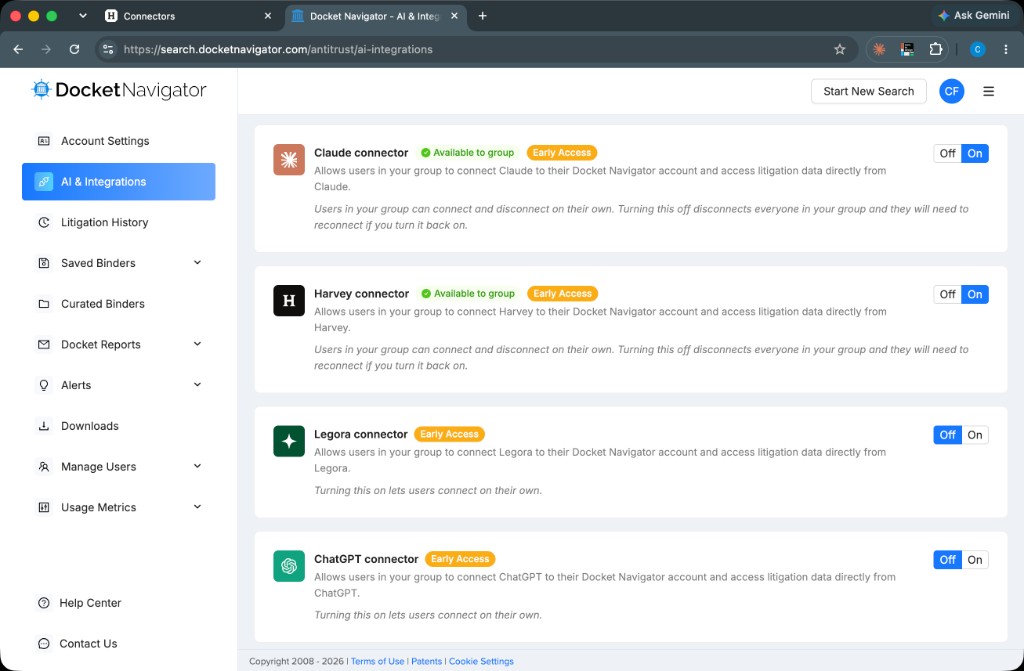
The Harvey connector is now available to every member of the Docket Navigator group. Each member controls their own connection under Your settings.
2. Enable Docket Navigator for your Harvey workspace
Section titled “2. Enable Docket Navigator for your Harvey workspace”A Harvey workspace administrator must enable Docket Navigator for the whole workspace before members can connect. Harvey turns on no connectors by default, and members see only the connectors the administrator enables.
The administrator finds Docket Navigator under Connectors in Harvey’s workspace settings and enables it for the workspace. The connector page looks the same as the one members see in step 3.
Four Docket Navigator tools create or edit binders and alerts. Harvey asks users to approve these actions only when a workspace administrator turns on write-action consent in the Integrations section of Harvey’s workspace settings. Docket Navigator recommends turning it on. See MCP Connectors in Harvey for details.
3. Connect your Docket Navigator account
Section titled “3. Connect your Docket Navigator account”After a Harvey workspace administrator enables Docket Navigator, each user connects individually.
-
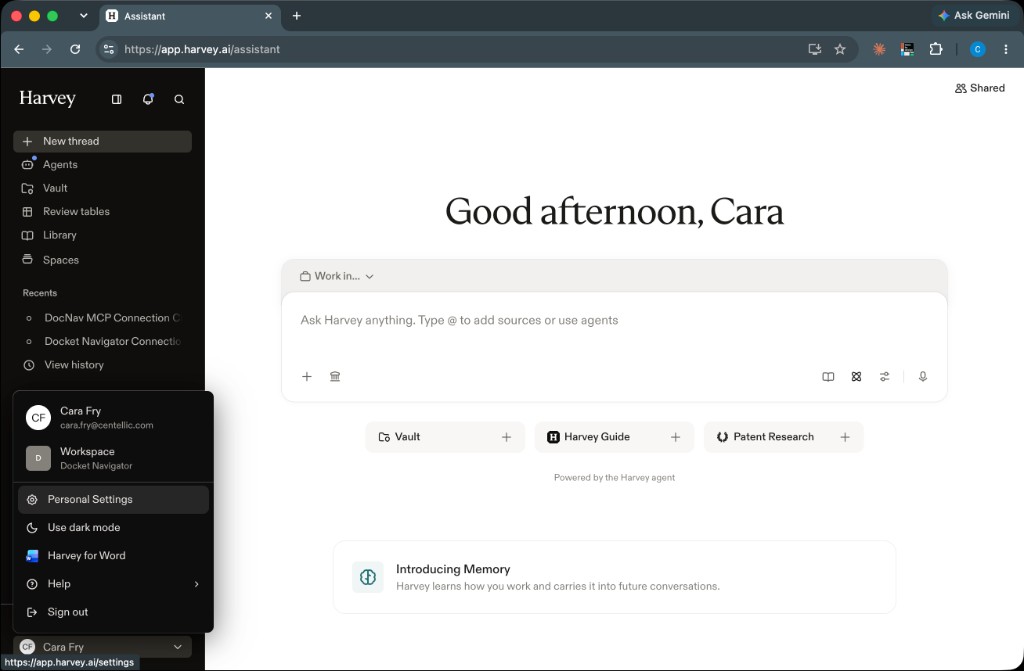
In Harvey, select your name at the bottom of the sidebar, then select Personal Settings.
-
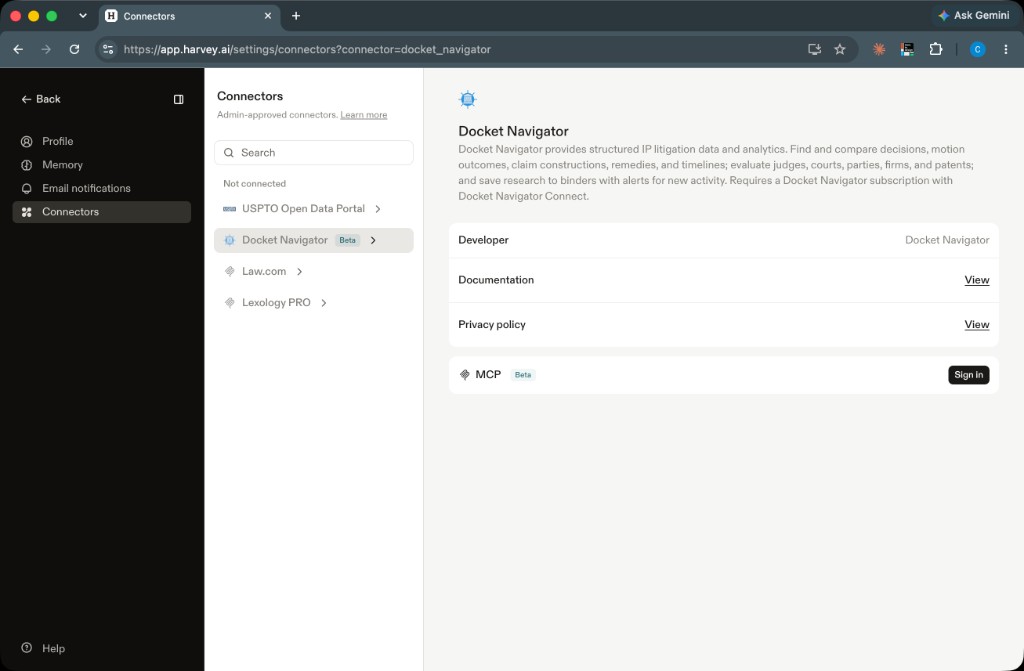
Select Connectors. The list shows the connectors your workspace administrator has approved.
-
Select Docket Navigator.
-
On the MCP row, select Sign in.
-
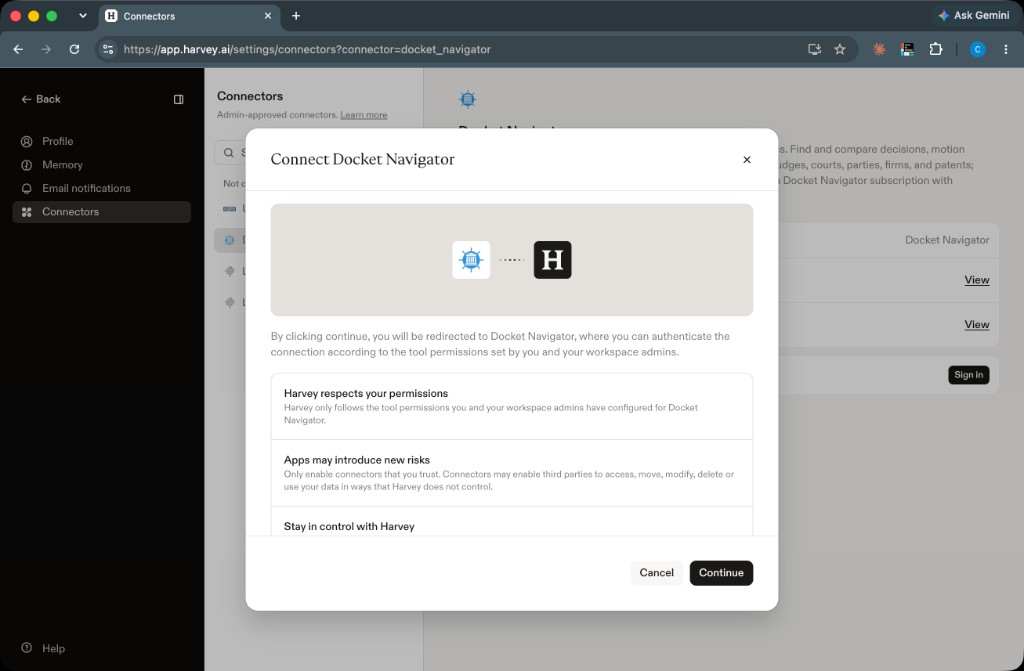
Review the Connect Docket Navigator dialog and select Continue.
-
Sign in with your Docket Navigator account when prompted.
If you are already signed in to Docket Navigator, you may proceed directly to the consent screen.
If your group administrator has enabled the Harvey connector, you can view and manage your individual connection in Docket Navigator. On AI & Integrations, scroll to Your settings. The card labeled Harvey shows whether your account is connected and when the connection was made. Select Disconnect on that card to revoke the connection from Docket Navigator without changing the group-wide connector setting.
4. Review and allow access
Section titled “4. Review and allow access”Docket Navigator displays the account being connected and the permissions Harvey is requesting.
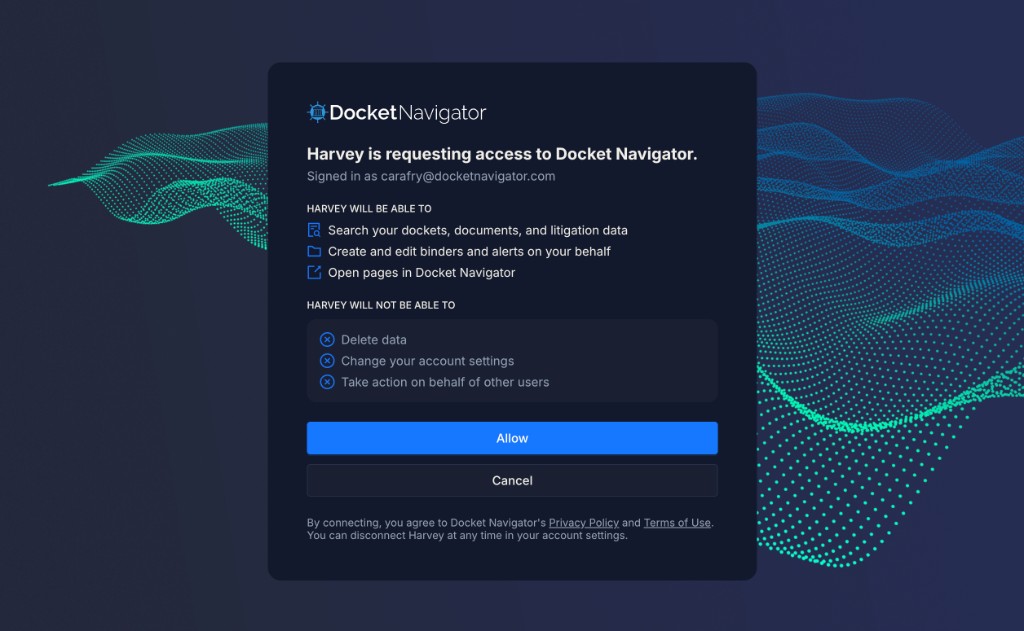
Harvey will be able to:
- Search your dockets, documents, and litigation data.
- Create and edit binders and alerts on your behalf.
- Open pages in Docket Navigator.
Harvey will not be able to:
- Delete data.
- Change your account settings.
- Take action on behalf of other users.
Confirm that the displayed email address is correct, review the permissions, and select Allow. Docket Navigator then returns you to Harvey.
Selecting Cancel ends the authorization process without connecting the account.
5. Add Docket Navigator to a query
Section titled “5. Add Docket Navigator to a query”- Start a new thread in Harvey.
- In the prompt box, type @.
- Under Knowledge sources, select Docket Navigator.
- Enter your question and send it.
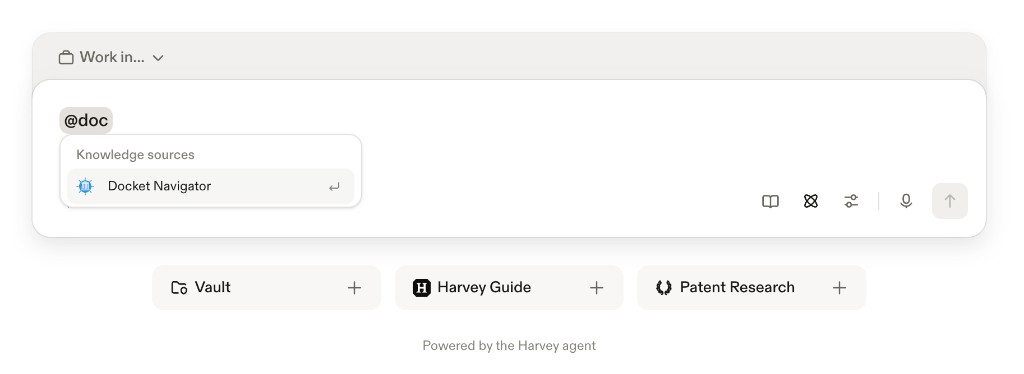
You can also use connectors in Vault, Workflow agents, the Word Add-In, and the Harvey mobile app.
If your administrator has turned on write-action consent, Harvey asks you to approve each binder or alert action before it runs. Review the requested action before approving it.
Disconnect Harvey
Section titled “Disconnect Harvey”To disconnect your individual account from Docket Navigator:
- Open AI & Integrations in Docket Navigator.
- Under Your settings, open the card labeled Harvey.
- Select Disconnect.
You can also manage the connection from Personal Settings > Connectors in Harvey. If you disconnect in Harvey, Harvey deletes the token it stores for your account. Your connection stays active in Docket Navigator until you select Disconnect on the Harvey card.
When a Harvey workspace administrator removes Docket Navigator from the workspace, Harvey deletes the stored credentials for every connected user.
A Docket Navigator group administrator can disable the Harvey connector for the entire group from Group settings. This disconnects every member of the group and requires each member to reconnect if the integration is enabled again.
Troubleshooting
Section titled “Troubleshooting”Docket Navigator does not appear in Harvey
Section titled “Docket Navigator does not appear in Harvey”Personal Settings > Connectors lists only the connectors your workspace administrator has approved. Ask a Harvey workspace administrator to enable Docket Navigator for the workspace.
Harvey cannot access Docket Navigator
Section titled “Harvey cannot access Docket Navigator”Confirm that the Harvey connector is turned on under the Docket Navigator group’s AI & Integrations settings and that your individual Docket Navigator connection is active.
Harvey created or edited a binder or alert without asking
Section titled “Harvey created or edited a binder or alert without asking”Ask your Harvey workspace administrator to turn on write-action consent in the Integrations section of Harvey’s workspace settings.
You were disconnected after previously connecting
Section titled “You were disconnected after previously connecting”A Docket Navigator group administrator may have disabled the Harvey connector, or a Harvey workspace administrator may have removed Docket Navigator from the workspace. After the connector is enabled again, return to Personal Settings > Connectors in Harvey and reconnect your account.